Official keyboard firmware support
RK Keyboard Firmware Update Guide
Identify your keyboard PID, choose the correct update path, and flash the matching firmware safely.
Before you begin
Windows PC
Required for the test and update tools
Wired mode
Keep the USB cable connected
Matching PID
Confirm it before downloading firmware
About RK Keyboard Firmware
Firmware is the core software running directly on your RK (Royal Kludge) keyboard's microcontroller. It handles everything from key scanning and input latency to wireless stability and power management.
Updating your firmware helps resolve performance bugs and stability issues.
Please read this guide carefully to ensure a safe and successful flashing process.
Obtain PID & Download Firmware
Due to the wide range of RK keyboard models, please use the test tool to identify your keyboard's PID and locate the matching firmware.
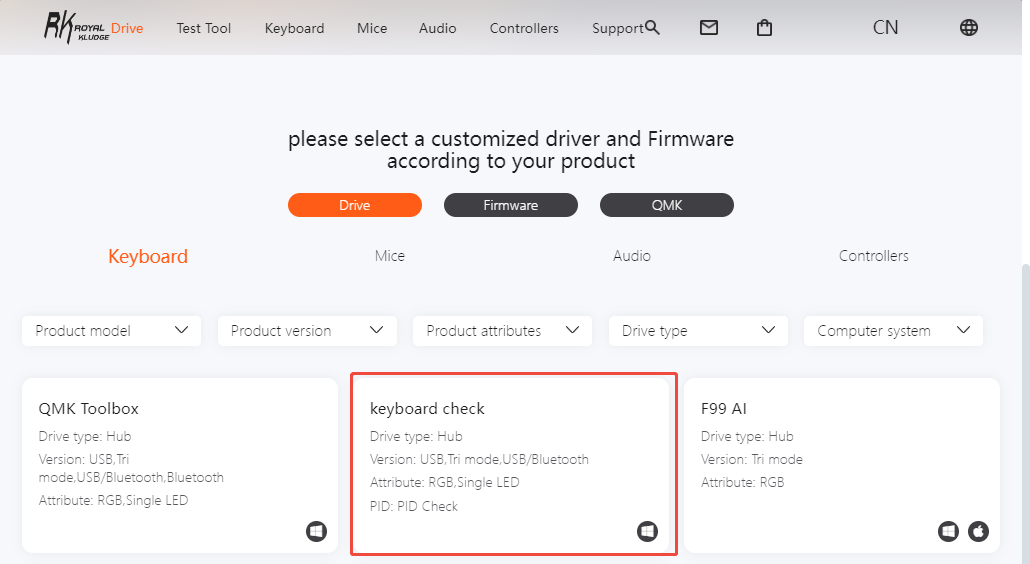
Download and launch the keyboard test tool
Disconnect the keyboard. Head to the Royal Kludge official driver page, download and launch the keyboard test tool (Windows only).
Connect in wired mode and read the PID
Connect the keyboard via cable (Wired Mode). The device details will populate automatically. Note: If the PID does not display, unplug and reconnect the cable.
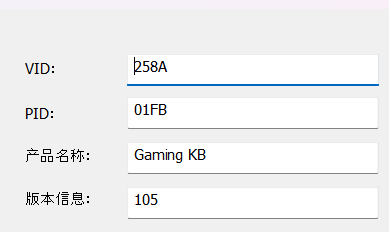
Once you have your PID, go to the Royal Kludge official website to download the firmware matched to this PID. Always confirm the firmware PID matches your keyboard PID before downloading, to avoid flashing incorrect firmware.
If you cannot find the firmware for your PID, feel free to contact us at rkgaming@rkgaming.com for assistance.
Choose the Correct Firmware Update Path
Check the VID shown in the keyboard test tool to confirm the correct flashing steps for your keyboard.
Path 01 · QMK/VIA
QMK Keyboard Firmware Update Guide
Ensure your keyboard is compatible with QMK/VIA before proceeding.
STEP 01 / LOAD FIRMWARE
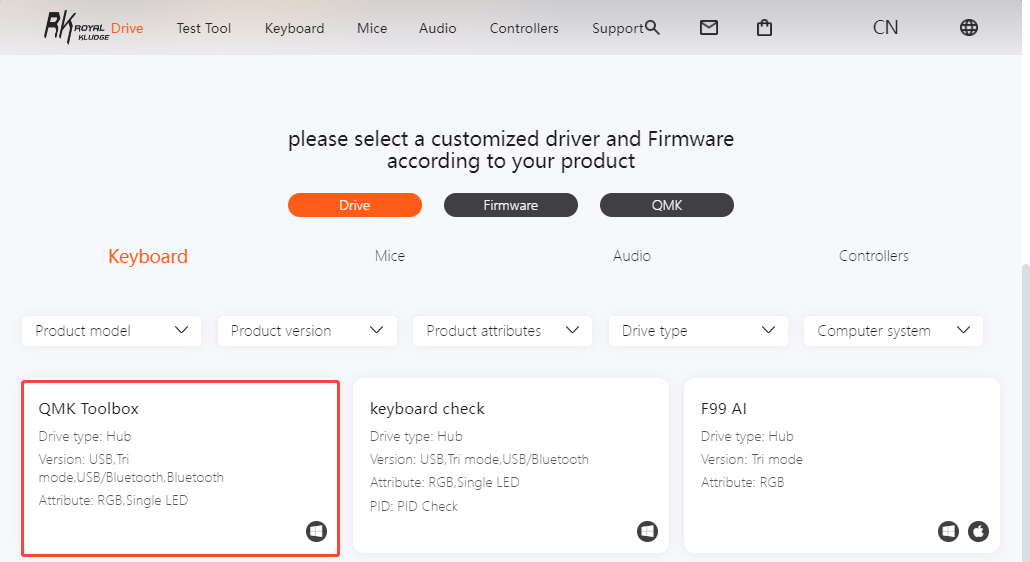
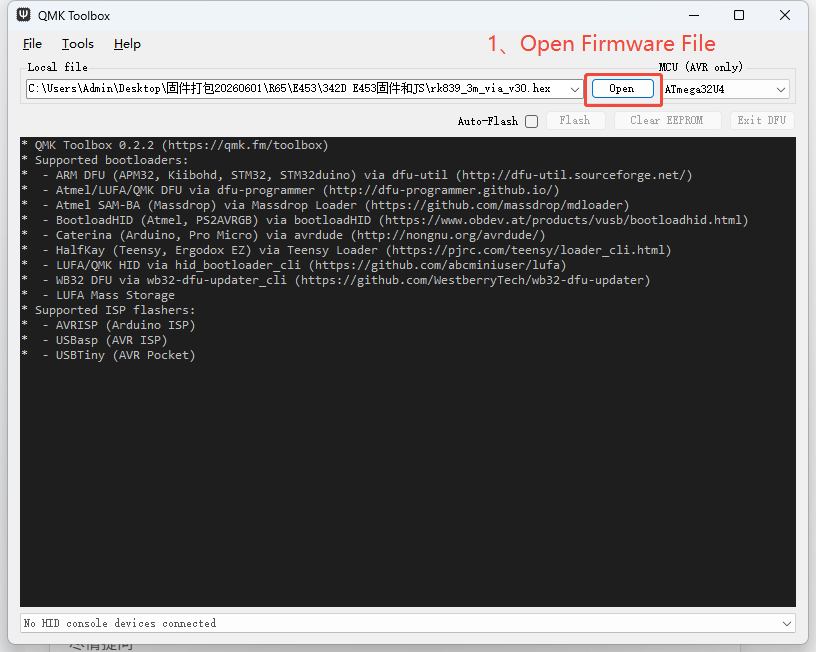
Open the correct firmware file in QMK Toolbox
Download and launch QMK Toolbox from the official website. Click Open to load the correct firmware file (.hex or .bin) for your keyboard.
STEP 02 / ENTER DFU AND FLASH
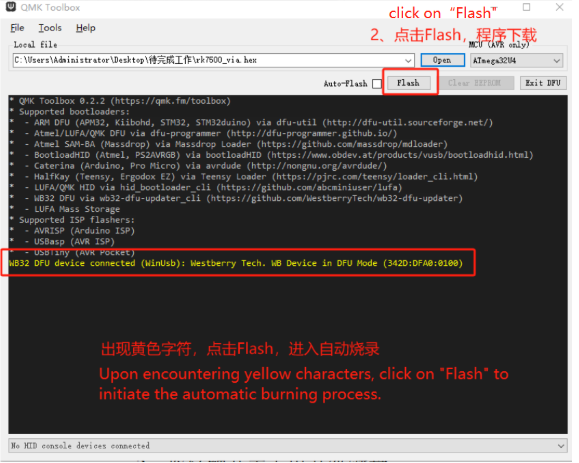
Enter DFU mode and start flashing
Confirm the keyboard is switched to wired mode.
Keep holding Fn + Right Shift + Esc, and while still holding them, plug in the USB cable to enter DFU mode. Once you see the yellow DFU prompt in the software window, click Flash to start firmware flashing.
STEP 03 / REBOOT
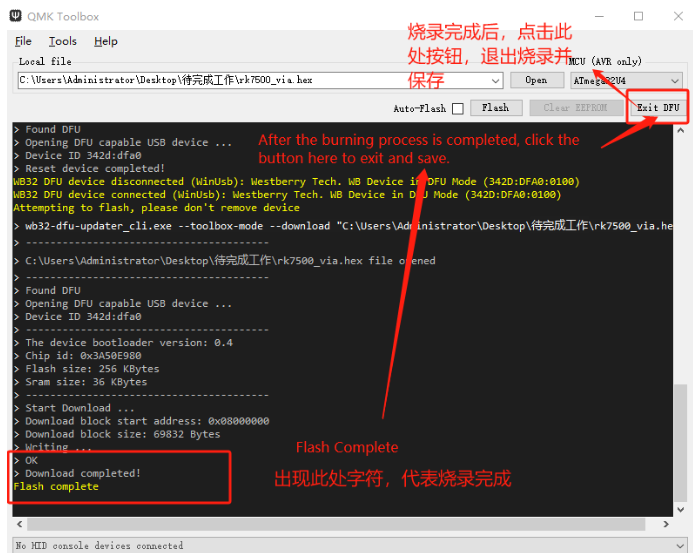
Confirm completion and exit DFU
"Flash complete" indicates a successful update. After flashing, click “Exit DFU” to reboot the keyboard.
Path 02 · RK proprietary firmware
RK Standard Firmware Update Guide
This guide applies only to official RK proprietary firmware.
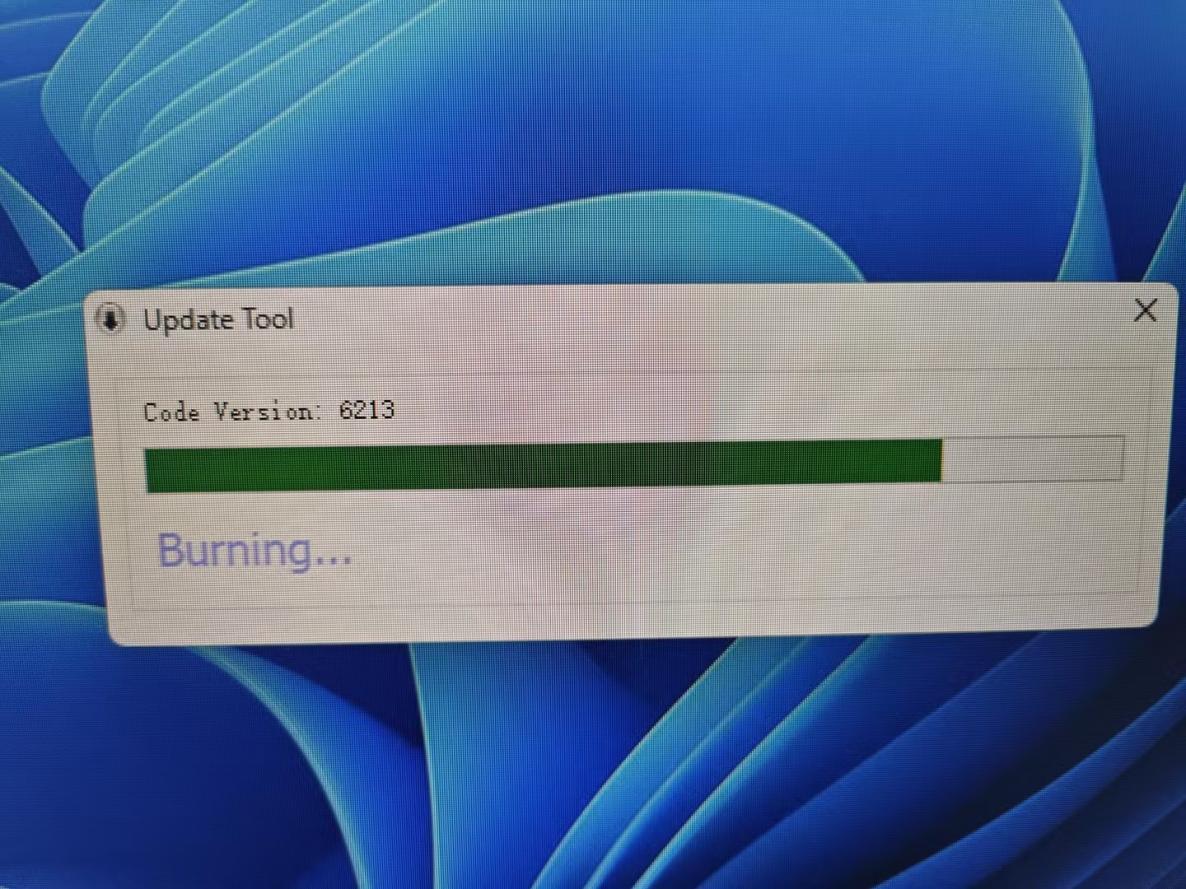
Before performing a firmware update, switch your keyboard to wired mode and connect it to a Windows PC. Launch the firmware flashing tool and keep the USB cable connected throughout the process until the progress bar reaches 100%. Some firmware builds can only be flashed using the dedicated upgrade tool.
Final safety check
PID matched
Firmware and keyboard identifiers agree.
Wired connection
The keyboard remains in wired mode.
No interruption
The USB cable stays connected until completion.
Thank you for choosing Royal Kludge keyboards.
We hope it delivers a great typing and gaming experience.
For any technical issues, feel free to contact us at rkgaming@rkgaming.com for assistance.